A free anti-slop skill for Claude Code (download the SKILL.md)
A ready-made Claude Code skill that checks a page against an anti-slop ban list. Download the SKILL.md, put it in .claude/skills/de-slop/, and run it in audit, fix or screenshot review mode.
The short version
- Save the free SKILL.md to .claude/skills/de-slop/ in your project, or to ~/.claude/skills/de-slop/ to use it in every project.
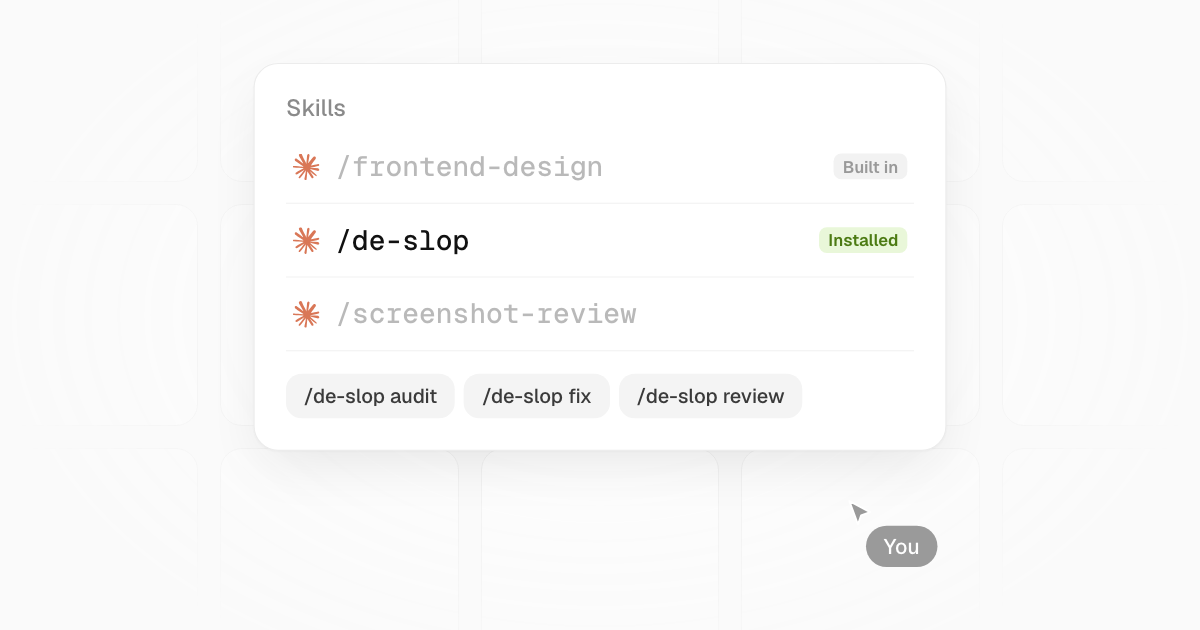
- Run /de-slop audit for a report, /de-slop fix to apply the changes, or /de-slop review with screenshot paths to judge the rendered page.
- The skill follows your own CLAUDE.md rules over its ban list. It only catches known defaults, so a page that passes still needs your own look.
On this page
You can paste a ban list into every chat, or you can install it once. A Claude Code skill is a folder with a
SKILL.md file in it. Claude Code reads the file’s description at the start of each session. It loads the full
instructions when you type the skill’s name, or when your request matches the description.
We wrote a skill called de-slop that checks a page against the
anti-slop ban list and reports or fixes what it finds. It’s free, it’s one file, and you
can read every line before you install it.
Download: /downloads/de-slop/SKILL.md, or get it from GitHub at muhammadsumon/de-slop (MIT license).
What the skill does
The skill has one job: find the patterns that make a page look generated, and name a replacement for each. It has three modes.
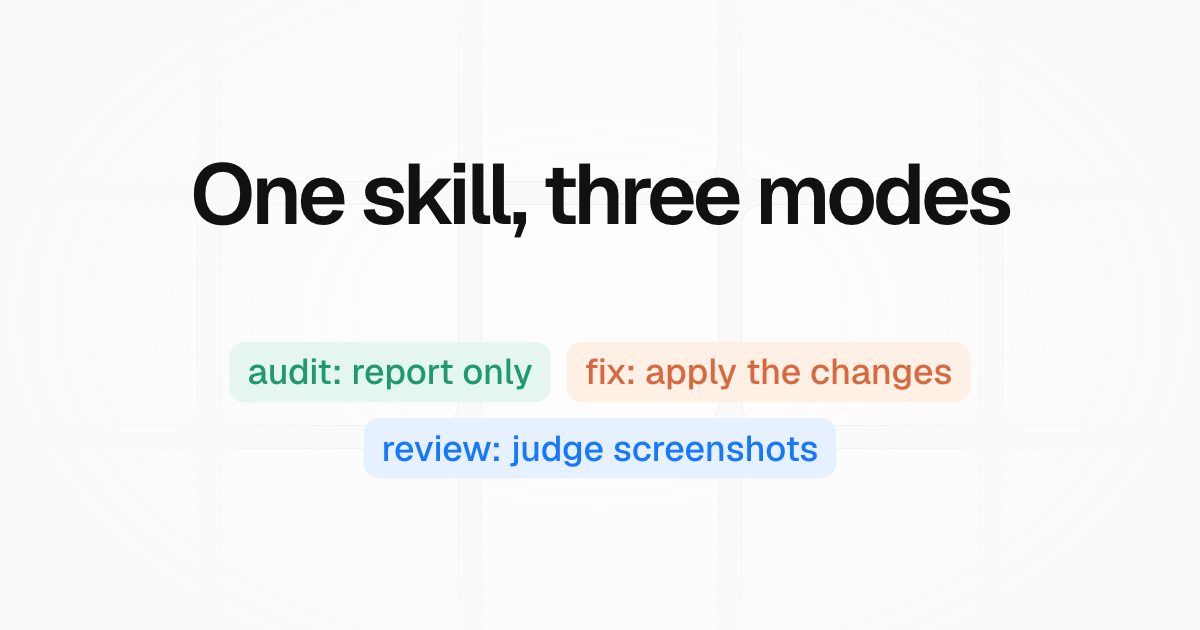
| Mode | What it does | Edits files? |
|---|---|---|
audit |
Searches the page’s files, reads the markup and reports findings, worst first | No |
fix |
Runs the audit, then applies the fixes and re-checks the changed files | Yes |
review |
Reads screenshots and judges what the code cannot show | No |
Every finding points to a line on the ban list, a place in your code or screenshot, and a fix. The report format is fixed, so two audits of the same page are easy to compare:
de-slop audit: src/pages/index.astro

| # | Ban | Where | What you see | Fix |
| 1 | <category: ban line> | <file:line> | <short quote or description> | <the replacement, using project tokens> |

Skipped because of project rules: <ban and the rule, or "none">
Needs a screenshot to judge: <spacing, line length, hierarchy, mobile layout>
The last two lines matter. The first tells you where the skill followed your rules instead of the ban list. The second admits what reading code can’t tell you.
Install it
Claude Code looks for skills in a few places. The two you need:
| Where | Path | Used in |
|---|---|---|
| Project | .claude/skills/de-slop/SKILL.md |
This project only. Commit it and your team gets it too |
| Personal | ~/.claude/skills/de-slop/SKILL.md |
Every project on your computer |
The name: de-slop line in the file’s header sets the command, /de-slop. Keep the folder name the same so the
two match.
-
Open /downloads/de-slop/SKILL.md and save the file. In most browsers that’s File, then Save Page As. Or right-click the link and choose Save Link As. Keep the name
SKILL.md. -
In a terminal, from your project’s root folder, make the skill folder and move the file into it. This assumes the file landed in your Downloads folder:
mkdir -p .claude/skills/de-slop
mv ~/Downloads/SKILL.md .claude/skills/de-slop/SKILL.md
For the personal version, use
~/.claude/skills/de-slopin both lines instead. -
Start Claude Code in the project with
claude, type/and look forde-slopin the list. If it doesn’t show, quit the session and start a new one.
That’s the whole install: one file in one folder.
Three ways to use it
Audit a page
Type the skill name, the mode and the file:
/de-slop audit src/pages/index.astroThe skill finds the page’s components, layout and global stylesheet, and searches them for known patterns. Then it reads the markup for the ones a search can’t catch. For example, three sibling cards with the same structure, or a headline that could fit any product. You get the table and no file changes.
Audit is the default. If you leave the mode out, or ask in plain words, it reports and doesn’t edit:
Does the pricing page look AI-generated? Use the de-slop skill.Claude can also pick the skill without being told. Claude decides when to load a skill from its description, and this one says to load when you ask whether a site looks AI-generated or vibe coded. Naming the skill makes sure.
Fix what it found
/de-slop fix src/pages/index.astroFix mode runs the audit first and shows you the table, then works down it. A few rules in the file keep the changes safe:
- Each change stays small and inside the existing files and components.
- Copy rewrites use only facts already on the page or in the project. Every changed headline is shown as before and after.
- Made-up stats, logos or testimonials are removed or flagged for you. They are never swapped for new made-up ones.
- It never deletes a whole section for any other reason without asking.
- When it’s done, it runs the searches again and lists what it changed and what it left alone.
Unless you’ve changed your permission settings, Claude Code still asks before it edits files. Read the table before you approve the first edit. If a finding is wrong, say “skip 3” and it moves on.
Review screenshots
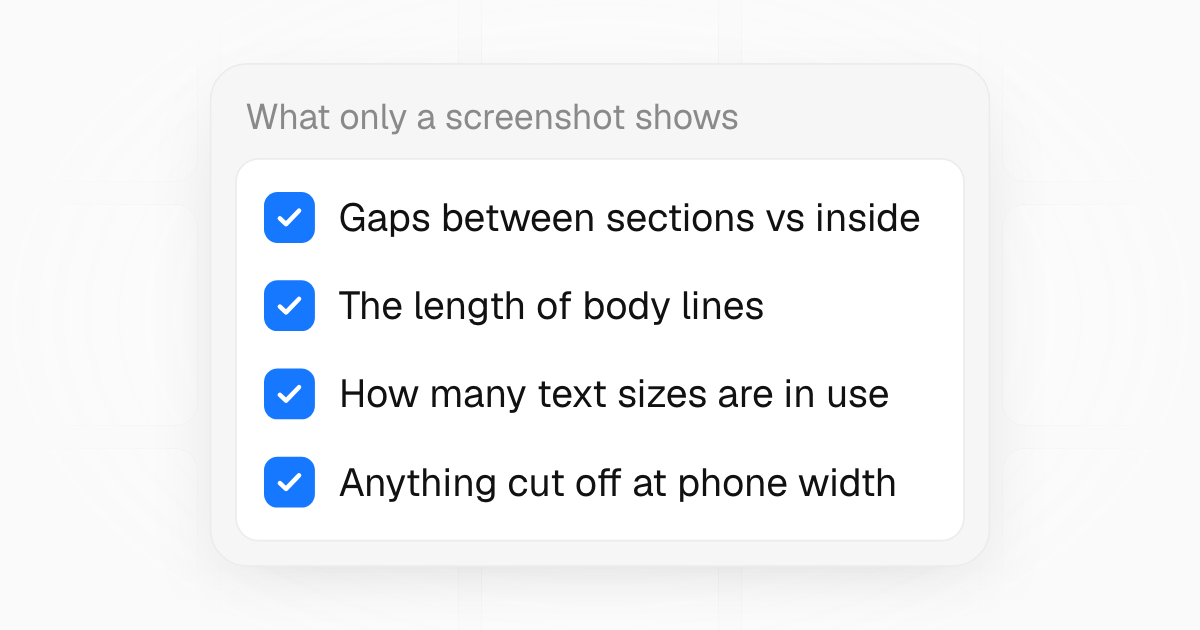
/de-slop review .review/home-phone.png .review/home-desktop.pngClaude Code can open image files, so review mode checks the ban list against what the page really looks like. It also checks what only a screenshot shows: gaps between sections versus gaps inside them, the length of body lines, how many text sizes are in use, and whether anything is cut off at phone width.
If you don’t have screenshots yet, these Playwright commands take full-page shots at phone and desktop width while
your dev server runs (install the browser once with npx playwright install chromium):
mkdir -p .review
npx playwright screenshot --viewport-size "390,844" --full-page http://localhost:4321 .review/home-phone.png
npx playwright screenshot --viewport-size "1440,900" --full-page http://localhost:4321 .review/home-desktop.png
The full loop is in Screenshot, critique, fix. It adds a pass for structure and a pass for type and spacing before this one.
What’s inside the file
The file is plain Markdown with a short YAML header. Here is the header and the part that picks the mode:
---
name: de-slop
description: "Audit a web page for AI design tells and fix them. Checks markup, styles and screenshots against a ban list (purple gradients, glows, three identical cards, buzzword copy, sparkle icons and emoji, fade-up on everything) and gives the replacement for each. Use when the user asks to de-slop a page, asks why a site looks AI-generated or vibe coded, or wants UI screenshots reviewed. Modes: audit (report only, the default), fix (apply the changes), review (judge screenshots)."
allowed-tools: Read Grep Glob
---

# de-slop

(one intro paragraph)

Arguments: $ARGUMENTS

## Pick the mode

Read the first word of the arguments above.

- `audit`: report only. Do not edit any file.
- `fix`: run the audit, then apply the fixes.
- `review`: judge screenshots instead of code. Do not edit any file.
A few choices in it are good to know if you edit it.
The description does the triggering. Claude decides when to load a skill from its description. So the use
cases come first, and the trigger phrases (“looks AI-generated”, “vibe coded”) are spelled out. If the skill runs
when you don’t want it, make the description narrower.
$ARGUMENTS carries the mode. When you type /de-slop fix src/pages/index.astro, Claude Code replaces
$ARGUMENTS with fix src/pages/index.astro. When Claude loads the skill by itself there are no arguments. So the
file tells it to take the mode from your request, and to fall back to audit.
allowed-tools is read-only. Read Grep Glob lets the skill open and search files without a permission prompt
each time. Edits and shell commands are left out on purpose, so they go through your normal permission settings.
We think a file you download from someone else shouldn’t pre-approve writes.
Your rules win. Before it starts, the skill reads your CLAUDE.md and any design file it points to. If your
brand color is purple, it skips the purple ban and says so in the report. Replacements use your tokens, fonts and
spacing scale, not new ones. If you don’t have rules yet, see
CLAUDE.md best practices: design rules Claude Code actually follows.
The search patterns are in the file too. This is the line for gradients:
- Gradients: `bg-gradient-to-|bg-linear-|bg-radial|bg-conic|linear-gradient\(|radial-gradient\(|conic-gradient\(`It covers both the Tailwind CSS v3 class name and the v4 one (bg-linear-to-r), plus raw CSS. Every match is
treated as a lead to check, not a verdict.
Make it yours
The ban list sits at the bottom of the file, grouped into color, type, layout, copy, imagery and icons, and motion. Edit it like any other text.
- Delete lines you disagree with. If you like a centered hero, remove that ban. A ban you don’t believe in gets argued with.
- Add a line when you correct the same thing twice. Use the same
BANNED -> USE INSTEADshape. - Stop it loading by itself. Add
disable-model-invocation: trueto the header. Then it only runs when you type/de-slop. - Share it. In the project folder, commit
.claude/skills/de-slop/SKILL.md. Everyone who opens the project in Claude Code gets the same checks.
Limits
Be clear about what this file can and can’t do.
- It finds known defaults, not good design. A page can pass every line and still be plain or wrong for your brand. The skill is told to say so when it sees that, but it’s one more opinion, not a designer.
- Code search misses what renders. A gradient that comes from a shared class, an imported component or an image only shows up in a screenshot. That’s why review mode exists.
- It works on the files it opens. On a large site, audit one page at a time and name the file.
- It is one file of instructions. Claude can still miss a finding or flag something that is fine. Read the table before you approve fixes.
What you have now
Next step: run /de-slop audit on your home page. Fix the top three findings by hand or with fix mode, and add one
ban of your own to the file. If you’d like a list of signs to look for by eye first, start with
12 signs your website looks vibe coded.
Share this post
 Post on X
 Share on LinkedIn
Ask an AI about this post
 ChatGPT
 Claude
 Perplexity
 Google AI
 Grok
 Written byMuhammad SumonDeveloper and UI/UX designer